VLC the most popular media player in the world, is much more than a perfect media player as it can do more than that. Yes you can use VLC media player for doing many other things such as Screen Recording, taking snapshot and video conversion. Although in this post i am only going to describe how you can use VLC as simple screen recorder.
So without much delay let’s start the process:
So Exactly how to use VLC as Simple Screen Recorder ?
Step 1: Open VLC media player and Select Advanced Controls on View in Menu Bar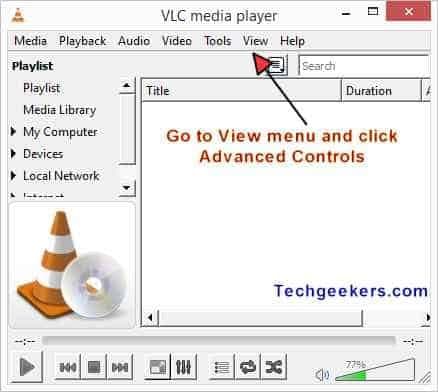
Step 2: After selecting Advanced Controls from View Menu you will see some new buttons in your vlc as shown in photo below 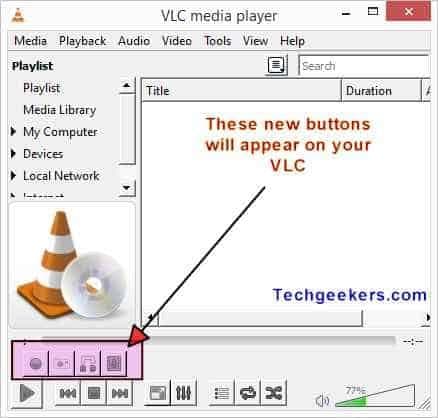
Step 3: Select the Capture Device from Media->Open Capture Device 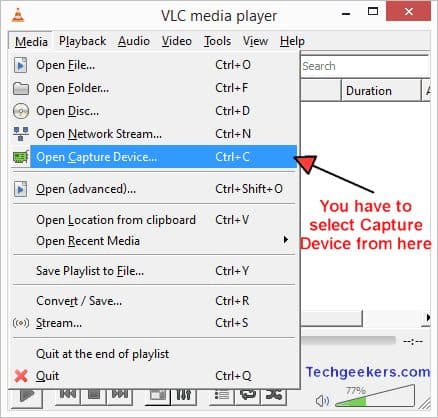
Step 4: Select the capture mode to Desktop and Select Frame Rate. You may choose 15fps to 30fps, which will be sufficient for Good Video Recording.
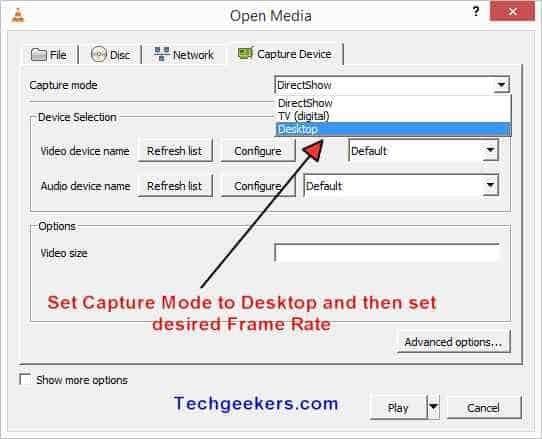
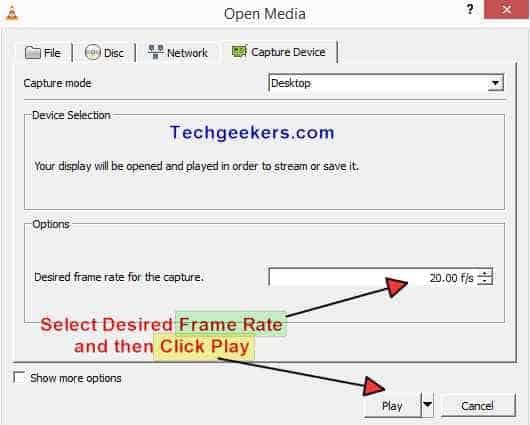
Step 5: After clicking the play button and you will see your screen(a mirror kind of image will be created) inside the video playback area of VLC. Just click the red button to start Recording video and to stop recording Press the red button again.
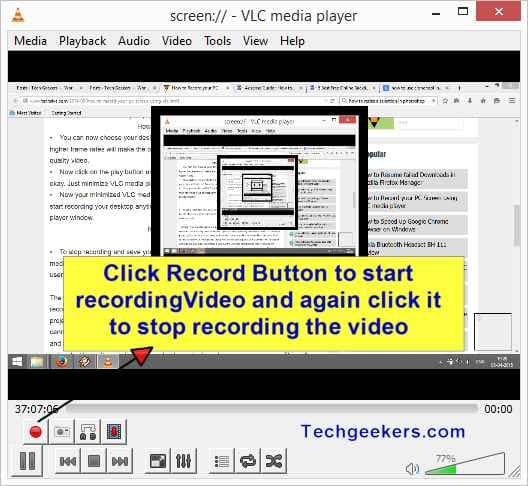
Where will be your saved video ?
In your Pictures folder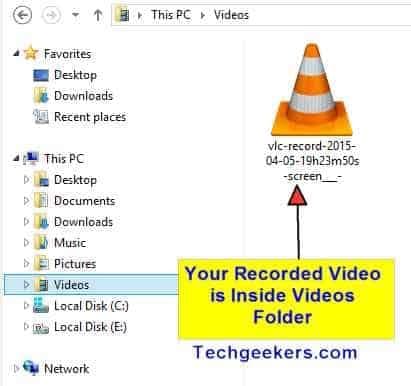
That’s how use VLC as Simple Screen Recorder.
Pretty amazing stuff na,
Stay tuned for more amazing stuff.
Cheers,
Aman Bisht